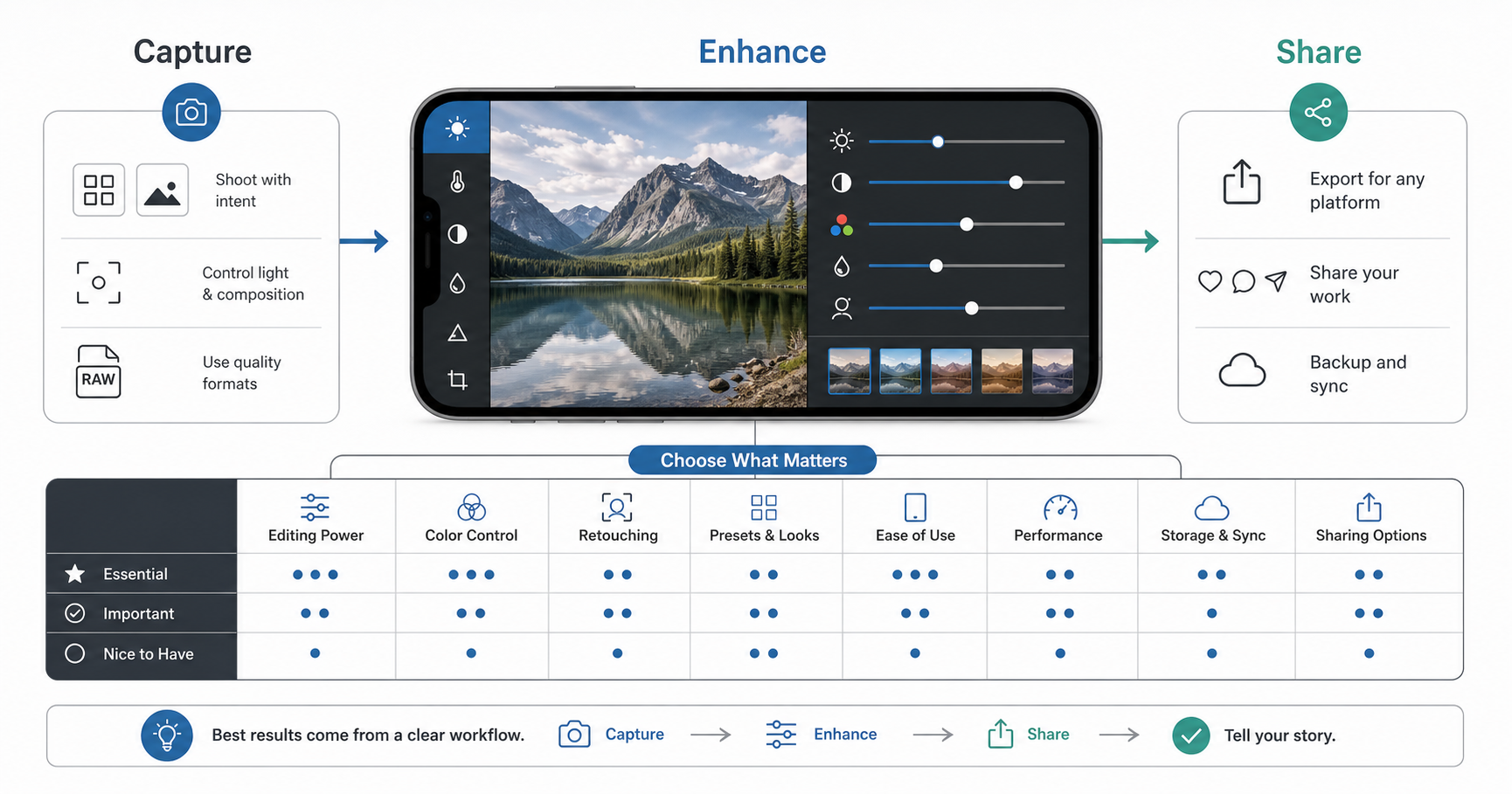

Mobile photography has matured past quick filters. The best photo editing apps now help photographers capture RAW images, recover detail, build a consistent color style, remove distractions, batch export for different channels, and keep a mobile-first workflow fast enough to use every day.
The right app depends on what you shoot. A travel creator who edits dozens of images for social media needs a different workflow than a portrait photographer cleaning skin tones, a product team preparing campaign assets, or a hobbyist who wants a free editor that still feels precise. This guide compares the strongest options by use case, explains what matters in a serious mobile editor, and gives you a repeatable workflow for better results.
Quick answer: the best photo editing apps for mobile photographers
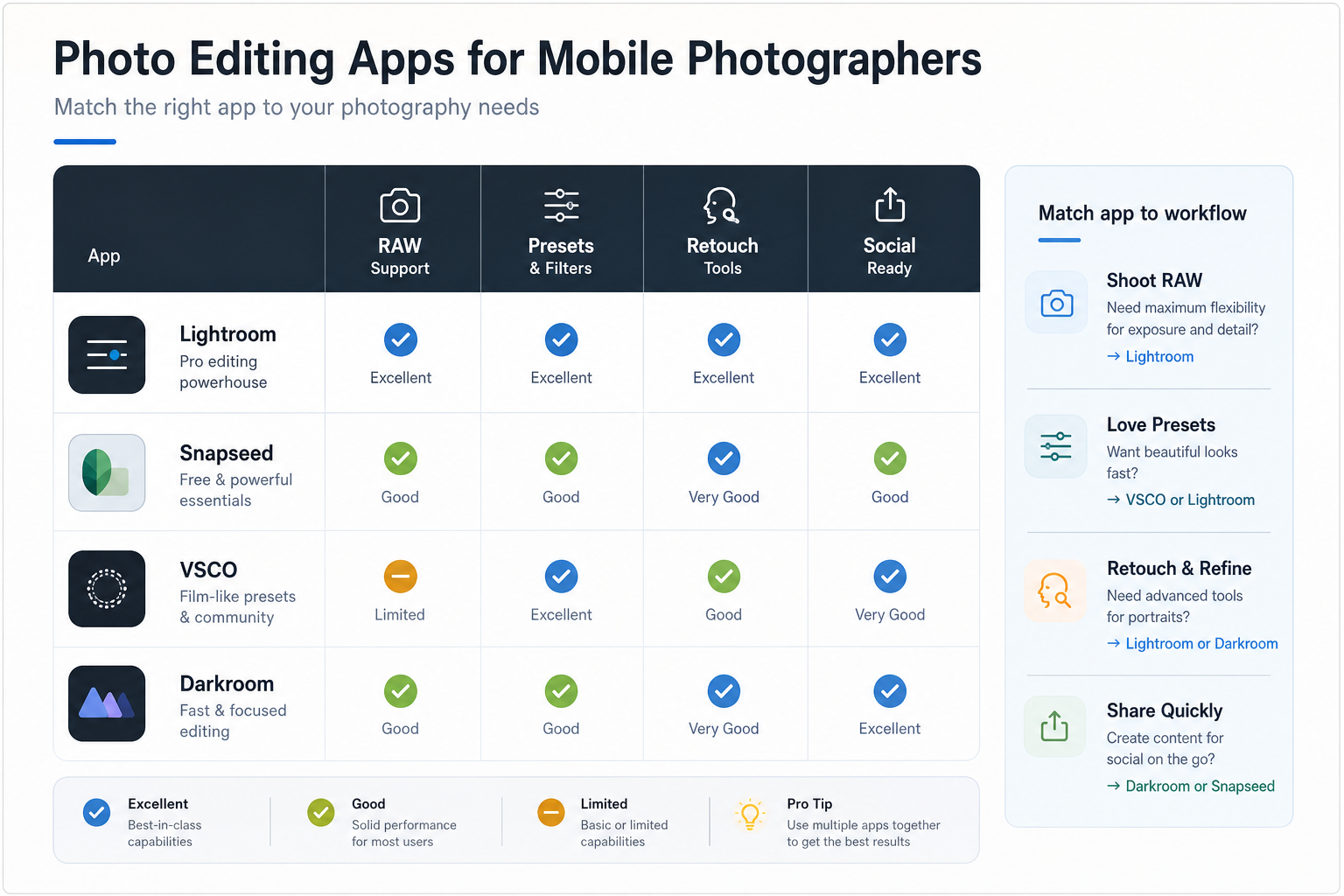
If you want one dependable recommendation, start with Adobe Lightroom Mobile for RAW editing, color control, healing, masking, sync, and a workflow that can grow with you. If you want a free, lightweight editor, Snapseed remains a strong choice because it combines RAW DNG support, selective adjustments, curves, healing, and straightforward exports. If your priority is a recognizable editorial look, VSCO is still strongest for film-inspired presets and community-driven sharing. For Apple-first photographers, Darkroom is a polished option for culling, batch editing, RAW, ProRAW, curves, masks, presets, and fast export across iPhone, iPad, Mac, and Vision Pro.
Most photographers do not need one perfect app. They need a simple stack: one core editor for exposure and color, one retouching tool for cleanup, and one export workflow that preserves quality. That is why the best answer is often Lightroom or Darkroom as the core editor, Snapseed as the free utility editor, and a specialist app like TouchRetouch, Facetune, PicsArt, or VSCO when the image calls for a specific result.
What makes a great photo editing app?
A great photo editing app is not just a collection of sliders. It protects image quality, makes corrections predictable, supports a consistent style, and gets the final image ready for the place it will be seen. When you compare apps, judge them by workflow quality rather than feature-count alone.
| Decision factor | Why it matters | What to look for |
|---|---|---|
| RAW and non-destructive editing | Preserves more highlight, shadow, and color data for serious edits. | RAW or DNG support, edit history, versions, and export controls. |
| Local adjustments | Lets you fix the subject, sky, background, skin, or product area without changing the whole image. | Masks, brushes, selective points, gradients, and healing tools. |
| Color and tone control | Creates the visual polish people associate with professional photography. | Curves, white balance, HSL/color mixer, contrast, clarity, grain, and presets. |
| Retouching and cleanup | Removes distractions that weaken the final image. | Healing, object removal, portrait tools, clone/repair, and edge-aware cleanup. |
| Batch and export workflow | Saves time when publishing across blog, portfolio, social feed, stories, ads, or client channels. | Batch edits, saved recipes, resizing, format choices, watermarking, and cloud sync. |
| Learning curve and price | The best app is the one you can use consistently without fighting the interface. | Free tier limits, subscription value, tutorials, presets, and predictable menus. |
Photo editing app comparison table
The table below is the fastest way to narrow the list. Use it as a starting point, then test two or three apps with the same photo to see which one gives you better control and speed.
| App | Best for | Strengths | Watchouts | Ideal user |
|---|---|---|---|---|
| Adobe Lightroom Mobile | Best overall mobile editing workflow | RAW editing, masking, healing, presets, sync, professional color control, and strong exports. | Many premium capabilities sit behind an Adobe subscription. | Photographers who want a serious long-term workflow. |
| Snapseed | Best free precision editor | RAW DNG support, selective Control Point adjustments, curves, healing, details, and simple exports. | Less polished for large libraries and multi-device workflow. | Beginners and experienced photographers who want a capable free app. |
| VSCO | Best presets and creator community | Film-inspired presets, fast style exploration, video/photo editing, and community publishing. | Advanced editing depth is not the main reason to use it. | Creators who want a consistent editorial look quickly. |
| Darkroom | Best Apple-first workflow | Photo and video editing, RAW/ProRAW, batch, culling, curves, masks, presets, and native Apple ecosystem feel. | Best fit if you primarily use Apple devices. | iPhone photographers who edit many images often. |
| TouchRetouch | Best object removal specialist | Quickly removes wires, spots, small objects, and background distractions. | It is a specialist cleanup tool, not a full editing suite. | Photographers who need fast distraction removal. |
| Facetune | Best portrait-focused retouching | Portrait, face, skin, and presentation tools designed for people photography. | Can become unnatural if edits are pushed too far. | Portrait, beauty, influencer, and profile-image workflows. |
| PicsArt | Best creative social edits | Collage, stickers, effects, background edits, templates, and quick content creation. | Less ideal for subtle professional color grading. | Social creators who need expressive visuals fast. |
| Pixlr | Best quick multi-purpose editor | Fast edits, overlays, filters, collage-style creation, and accessible design tools. | Not the deepest RAW or professional library workflow. | Casual creators, marketers, and teams making lightweight visuals. |
| Afterlight | Best artistic overlays and textures | Film-like textures, light leaks, frames, overlays, and stylized looks. | Use it after foundational correction, not instead of correction. | Creators building a distinctive visual style. |
Best photo editing apps by use case
Best overall: Adobe Lightroom Mobile
Lightroom Mobile is the most reliable default for photographers who care about image quality. It gives you RAW editing, color and tone controls, presets, masking, healing, background blur features, cloud sync, and a workflow that feels close to desktop Lightroom. It is strongest when you want to create a repeatable editing style rather than make one-off filter changes.
Choose Lightroom if you shoot RAW, want better highlight and shadow recovery, need consistent color across a portfolio, or already use Adobe tools. It is especially useful for travel, product, food, real estate, creator, and brand photography where every image needs to look intentional.
Best free precision editor: Snapseed
Snapseed remains one of the most useful free photo editing apps because it offers serious control without a heavy interface. Its Selective tool uses control points for local adjustments, and its RAW Develop workflow can open and adjust DNG files. It also includes practical tools like curves, brush, healing, perspective, details, and black-and-white looks.
Choose Snapseed if you want a no-cost editor that teaches good editing habits. It is excellent for quick corrections, selective brightness and contrast changes, and one-photo-at-a-time edits.
Best presets and community: VSCO
VSCO is strongest when the goal is a cohesive visual mood. Its presets are more than simple filters; the best ones give a photo a recognizable editorial direction that can be adjusted with manual tools. VSCO is useful when you want your social feed, travel gallery, or creator portfolio to feel consistent without building every look from scratch.
Choose VSCO if style speed matters more than deep RAW control. It works especially well after you have already corrected exposure and white balance in a core editor.
Best iPhone workflow: Darkroom
Darkroom is built for people who edit directly inside the Apple ecosystem. It supports a fast photo and video workflow across iPhone, iPad, Mac, and Vision Pro, with culling, batch editing, RAW and ProRAW support, curves, masks, presets, and export controls. Its strength is the feeling of speed: open, sort, edit, copy adjustments, export, and move on.
Choose Darkroom if you take a lot of iPhone photos and want a native-feeling editor with enough depth for serious color and batch work.
Best retouching: TouchRetouch and Facetune
Retouching is where specialist apps earn a place in the workflow. TouchRetouch is useful for removing small distractions such as cables, spots, signs, background clutter, or objects that pull attention away from the subject. Facetune is more portrait-focused, with tools for skin, face, lighting, and presentation.
The rule is simple: use retouching to remove distractions, not personality. Over-smoothed skin, fake lighting, and excessive reshaping often make an image less trustworthy.
Best creative edits: PicsArt, Pixlr, and Afterlight
For collages, stickers, layouts, overlays, light leaks, quick campaign visuals, and social-first creative edits, apps like PicsArt, Pixlr, and Afterlight can be faster than professional editors. They are best used after the photo has already been corrected, because creative effects look better when exposure, white balance, crop, and subject clarity are already under control.
A practical mobile photo editing workflow
The app matters, but the workflow matters more. A strong mobile edit usually follows the same order every time: shoot well, select carefully, correct the foundation, apply style, retouch only where needed, and export for the final channel.
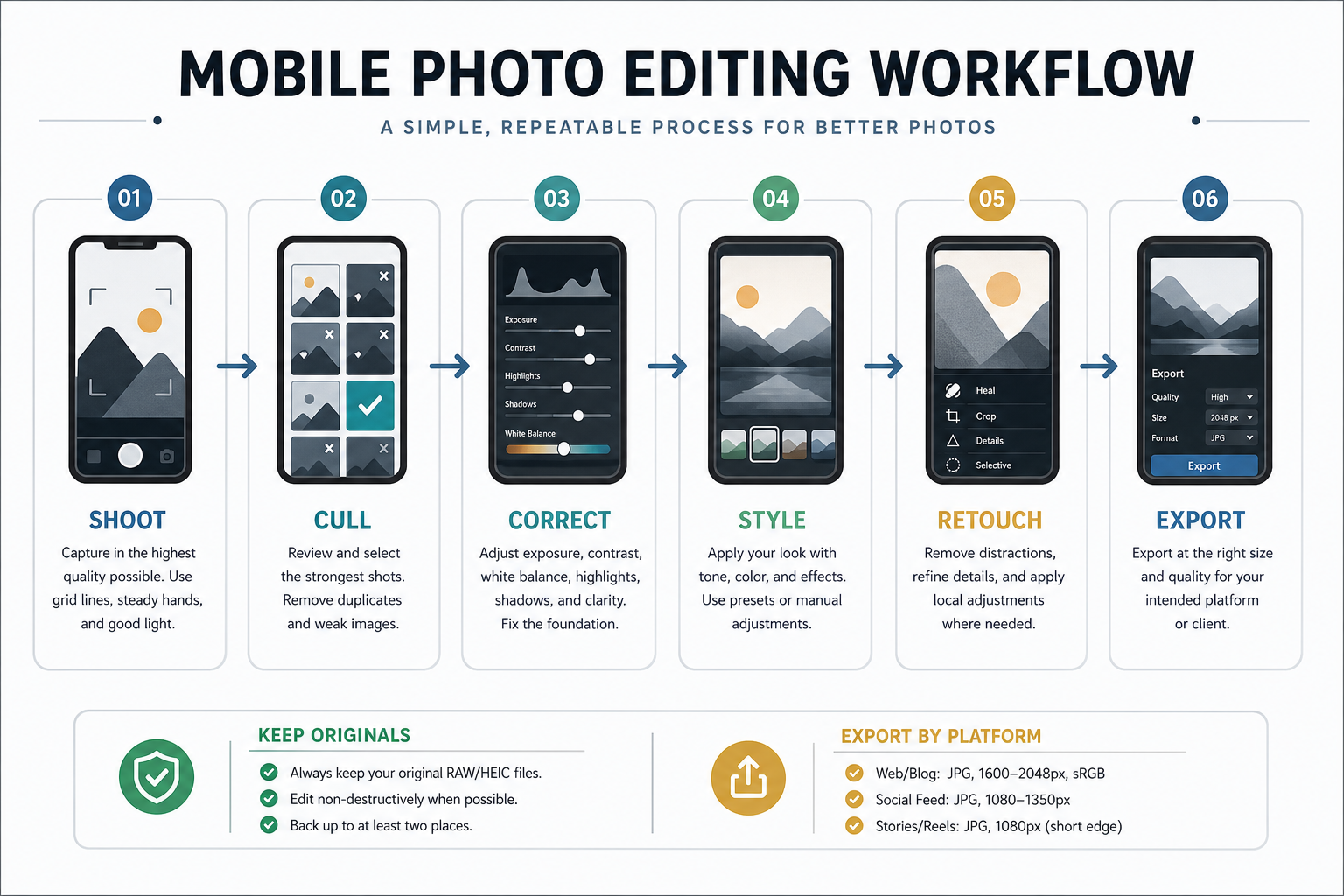
- Shoot with the edit in mind. Use the highest-quality capture mode available, keep the lens clean, watch the light, and shoot RAW or ProRAW when the scene has difficult highlights or shadows.
- Cull before editing. Delete duplicates and weak frames first. Editing ten similar photos wastes time and makes final selection harder.
- Correct exposure and color. Fix crop, white balance, exposure, contrast, highlights, shadows, and lens issues before applying a look.
- Build the style. Apply presets, color mix, grain, curves, or tone after the image is technically balanced.
- Retouch selectively. Remove distractions, clean edges, and refine the subject without making the edit feel artificial.
- Export for the destination. A blog, Instagram feed, story, ad, portfolio, and client handoff all need different size, format, and compression choices.
How to choose the right photo editing app
Use your real shooting behavior as the filter. Do not choose an app because it has the longest feature list; choose the one that removes the most friction from your actual workflow.
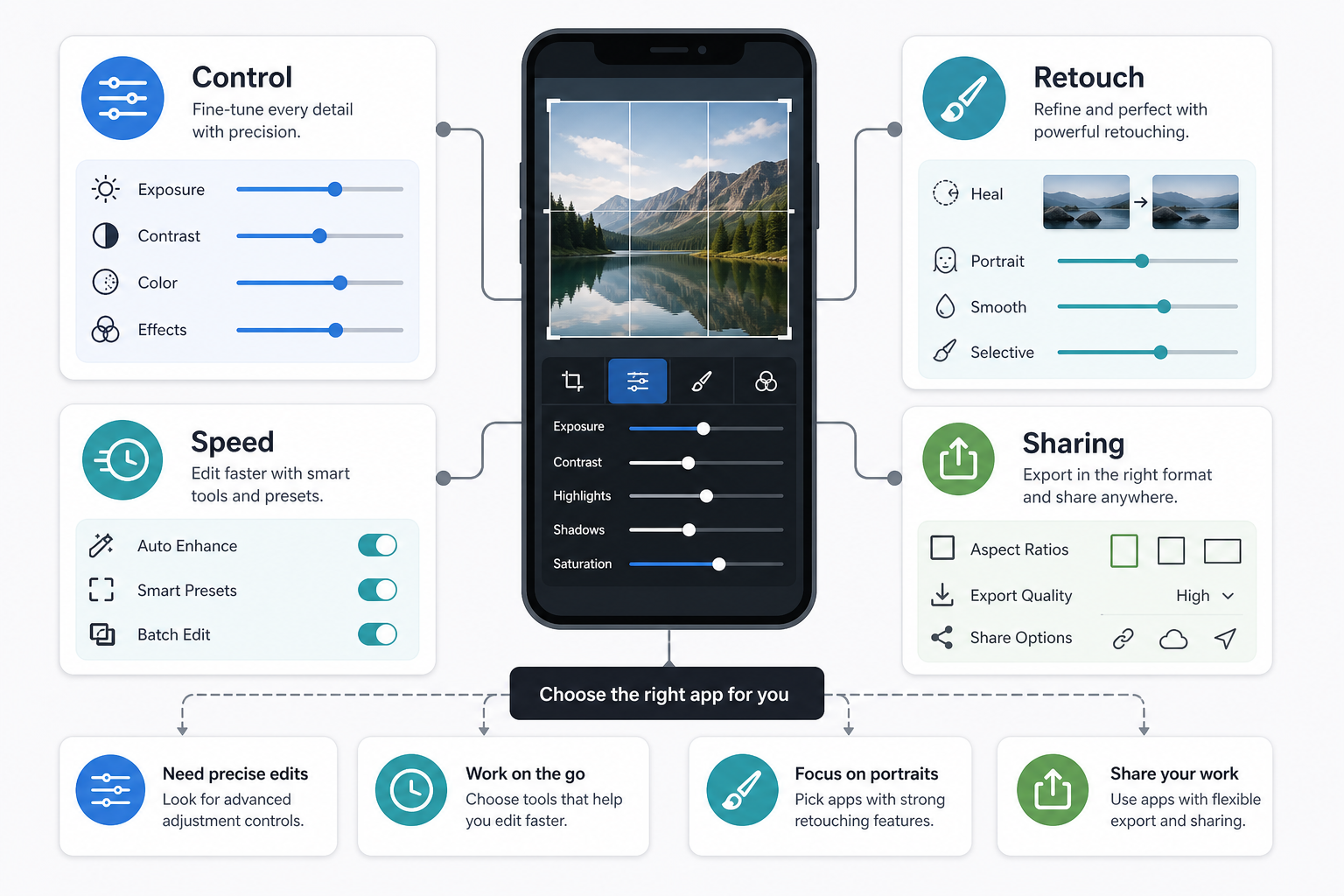
- If you shoot RAW: prioritize Lightroom, Darkroom, or Snapseed.
- If you edit many images at once: prioritize batch editing, saved presets, sync, and export consistency.
- If you create for social: prioritize presets, quick crop ratios, templates, and easy sharing.
- If you edit portraits: prioritize realistic retouching, skin tone control, healing, and local adjustments.
- If you are learning: start with Snapseed or Lightroom and master correction before buying more specialist apps.
Common photo editing app mistakes to avoid
The fastest way to improve mobile edits is to avoid a few predictable mistakes. Most weak mobile edits are not caused by bad apps; they are caused by skipping the foundation and pushing style too early.
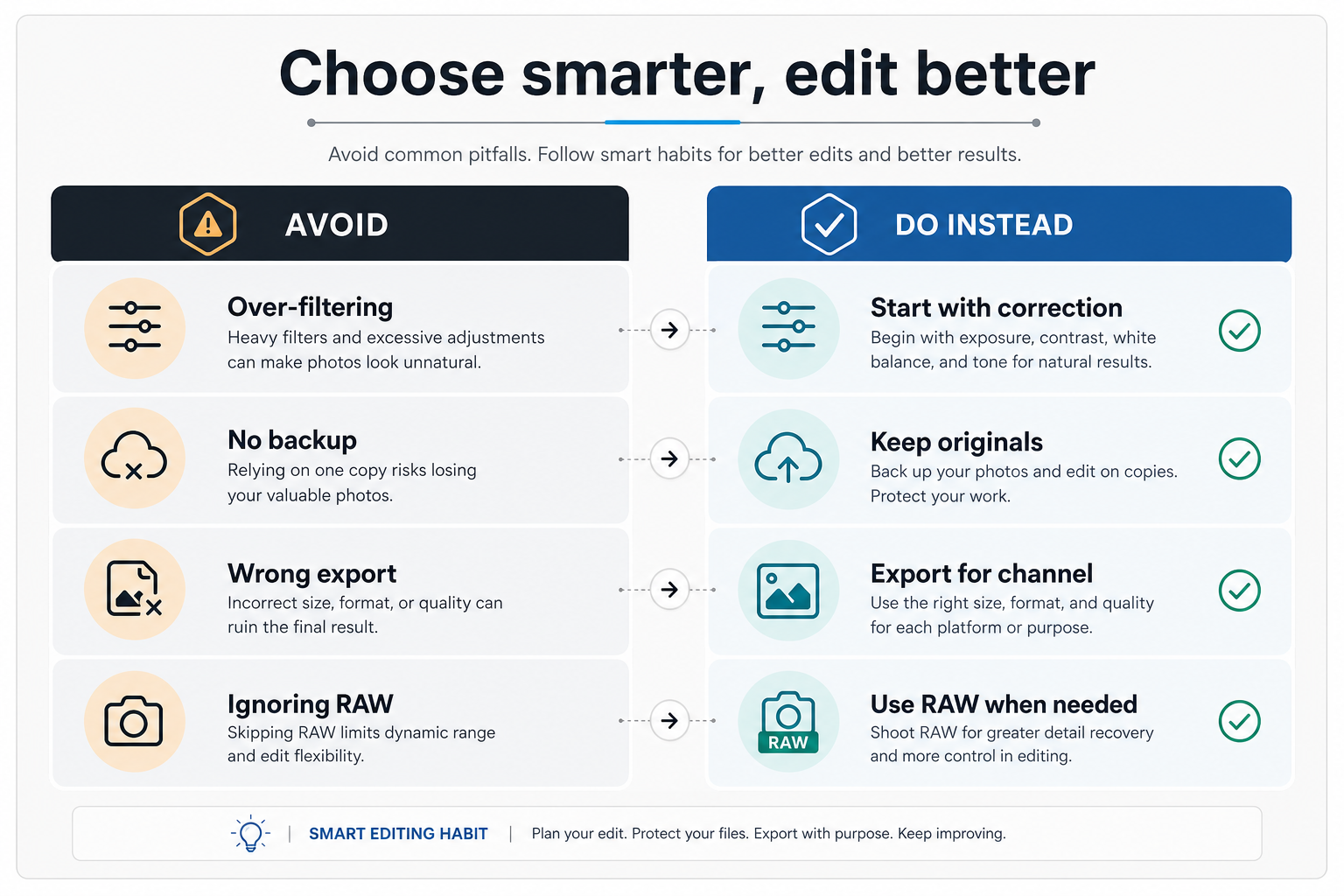
- Do not start with a heavy filter. Correct exposure, white balance, crop, and contrast first.
- Do not edit only the subject. Check the edges of the frame, background distractions, horizon, and color casts.
- Do not export one file for every platform. Match size, format, compression, and crop to the destination.
- Do not overwrite originals without a backup. Keep the original RAW, HEIC, or JPEG and export edited copies.
- Do not chase every new app. A stable workflow beats a folder full of half-learned editors.
What this means for photo editing app development
The best editing apps win because they understand the photographer journey, not because they add random effects. For teams building a photo editing app or planning a mobile app development roadmap, the product must balance performance, image quality, storage, permissions, monetization, and a UI that makes complex editing feel natural on a small screen.
Important product decisions include RAW handling, GPU-accelerated previews, non-destructive edit history, cloud storage, preset marketplaces, export presets, privacy-safe media access, offline behavior, and how specialist tools such as AI cleanup or portrait retouching fit into the main workflow. A good app also needs onboarding that teaches users what to do next without turning the screen into a tutorial wall.
For a custom software development team building a mobile product, this is where strategy matters. The winning experience is usually not the app with the most tools; it is the app that helps a photographer get from capture to publish with fewer doubts and better-looking results.
If you are estimating the effort behind this kind of product, the custom software cost estimator can help frame scope, complexity, timeline, and team shape before a build.
Final recommendation
For most mobile photographers, the best setup is simple: use Lightroom Mobile or Darkroom as your main editor, Snapseed as a free precision tool, VSCO or Afterlight for style exploration, and TouchRetouch or Facetune only when a photo needs specialist cleanup. Start with one core editor, learn a repeatable workflow, and add specialist apps only when they solve a real bottleneck.
That approach keeps the creative process focused. You spend less time jumping between apps and more time making photographs that feel intentional, polished, and ready for the audience you want to reach.